STRANRAER ACADEMY

STRANRAER ACADEMY

Troubleshooting

Welcome and thank you for visiting our website. We appreciate your interest and value your time here. We have put together this troubleshooting page to ensure a seamless browsing experience for all our visitors. However, as with anything digital, there may be occasional issues that arise that may be out of our control. Rest assured that we are dedicated to resolving any issues that may hinder your experience. To ensure that you have the best possible experience while browsing our website, we kindly advise that you modify certain settings on your device. This way, you can be sure that you are getting the most out of your time on our platform. Thank you for your attention and we hope you have an enjoyable browsing experience.

Mobile Issues

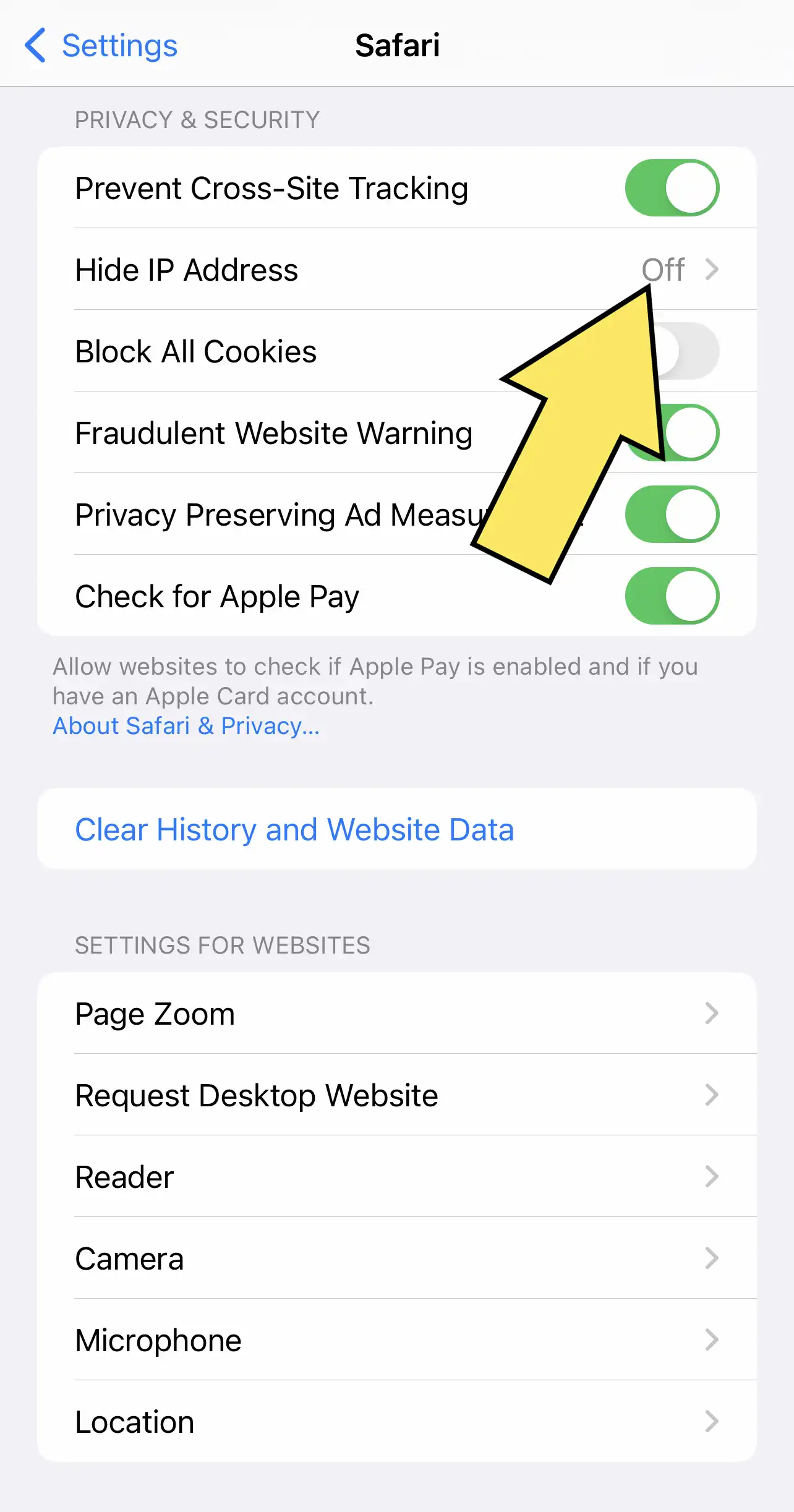
If you are using an Apple device you may find that you are unable to see the Facebook pages created by our school community. This seems to be a Safari issue only and is a simple fix. Just go to your phone settings and simply switch off Hide My IP address.

Google Chrome

When it comes to web browsing, Google Chrome remains the top choice, even on mobile devices. However, that doesn’t mean that the browser is perfect. If you’re using a mobile and seem to be experiencing performance issues try these solutions to maintain optimal performance.

When troubleshooting things, you should never rule out a simple restart. If Chrome is struggling to open pages or loading them partially, you close all the open tabs and restart the app.

If you’re using Google Chrome on Android, tap on the Tabs icon at the top. Next, use the three-dot menu in the top right corner to select Close all tabs.

For Chrome on iPhone, tap on the tabs icon at the bottom. Then tap on the Edit button and select Close All Tabs from the menu that pops up.

After this, restart Google Chrome to see if it can load pages.

Here’s how you can enable standard preloading in Chrome for Android and iPhone.

Android

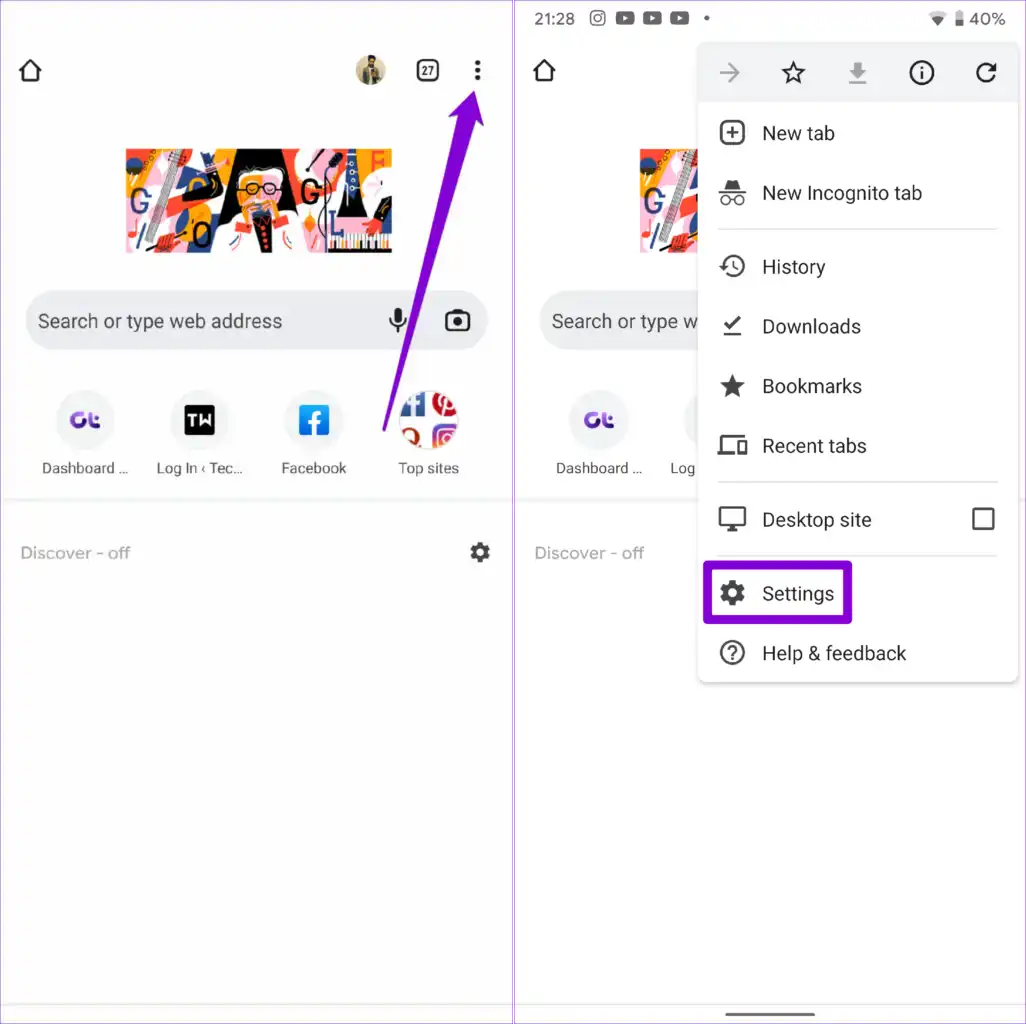
Step 1: Launch Google Chrome on your phone. Tap the three-dot menu icon in the top right to open Settings.

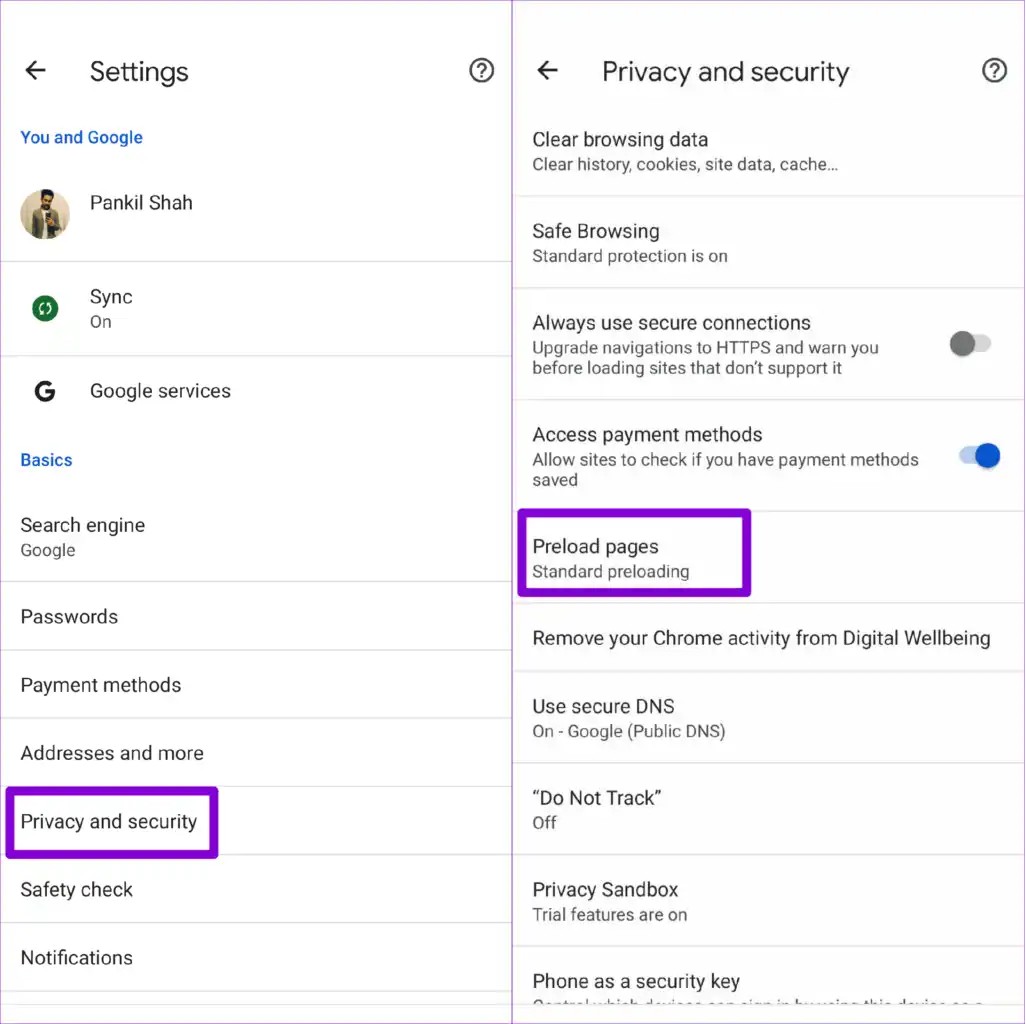
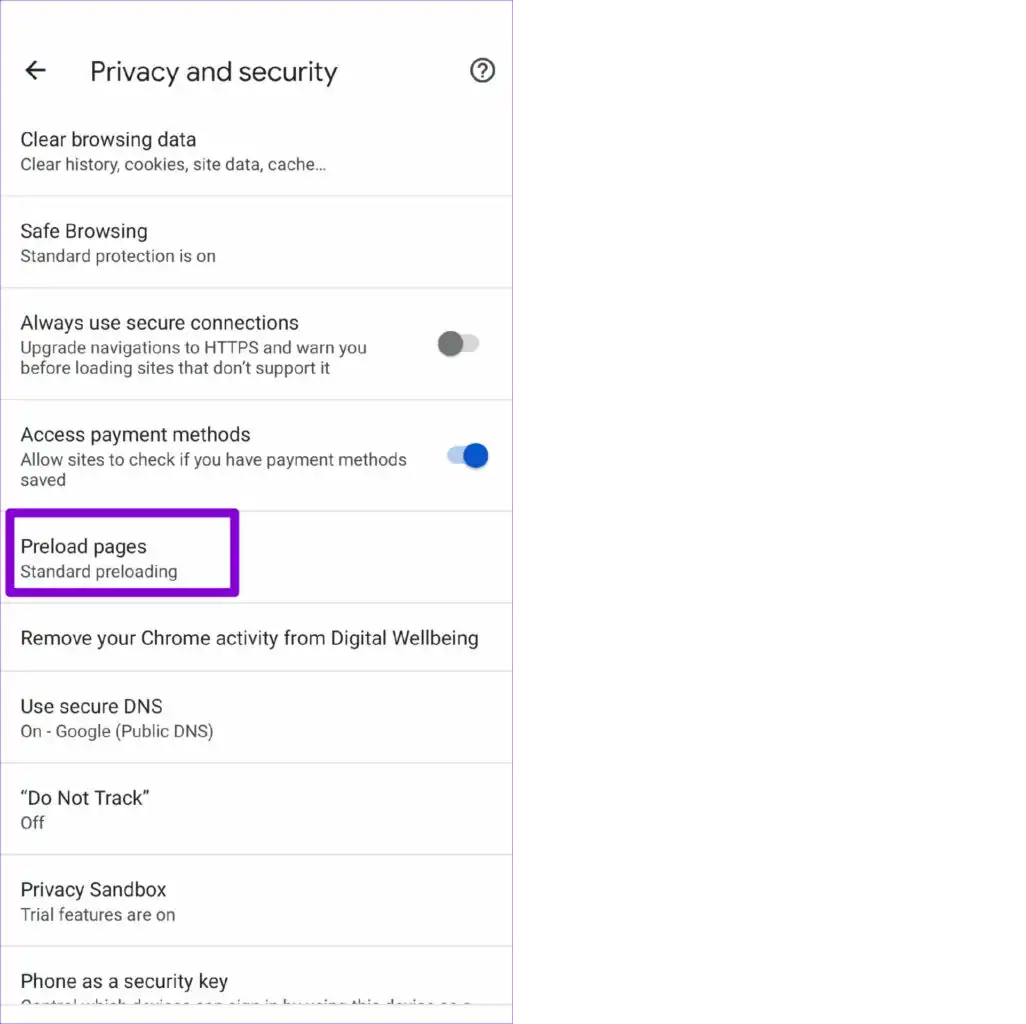
Step 2: Go to Privacy and security and tap on Preload pages.

Step 3: Select the Standard preloading option.

iPhone

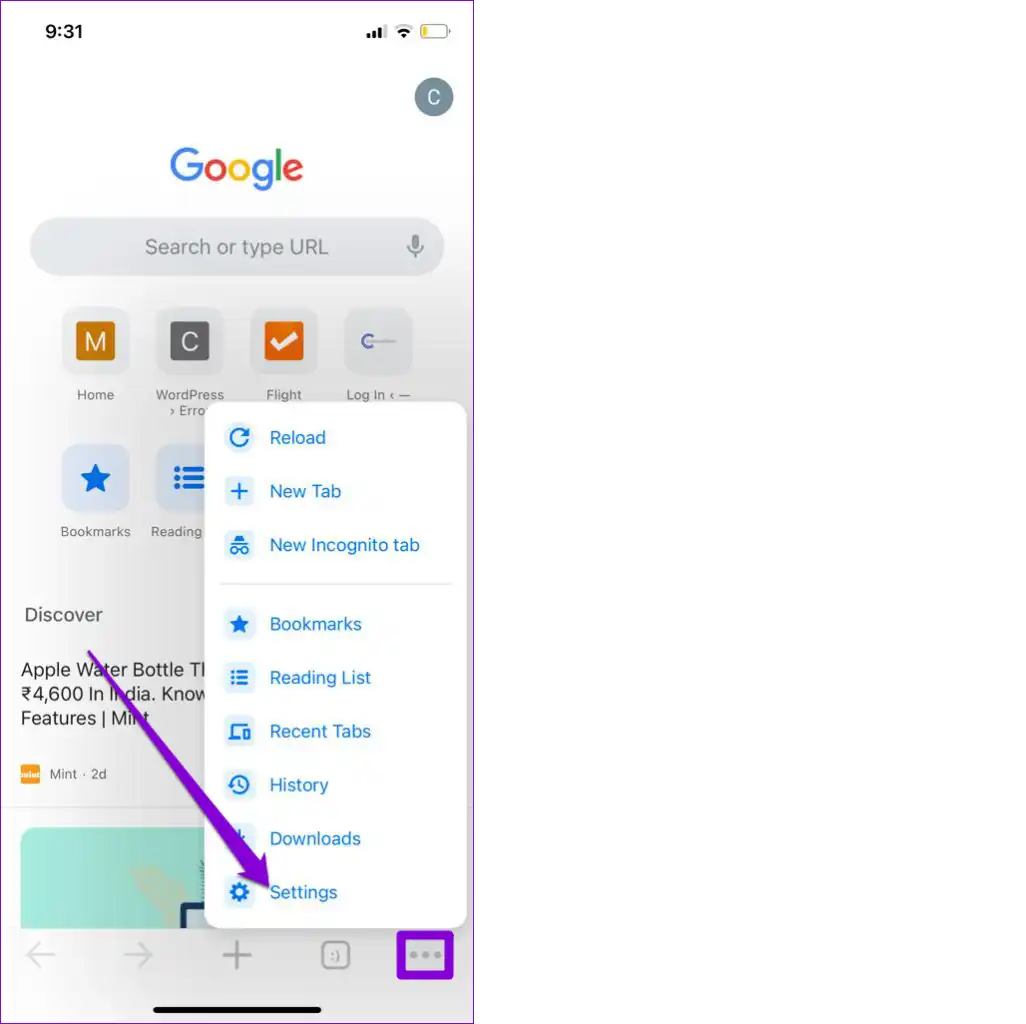
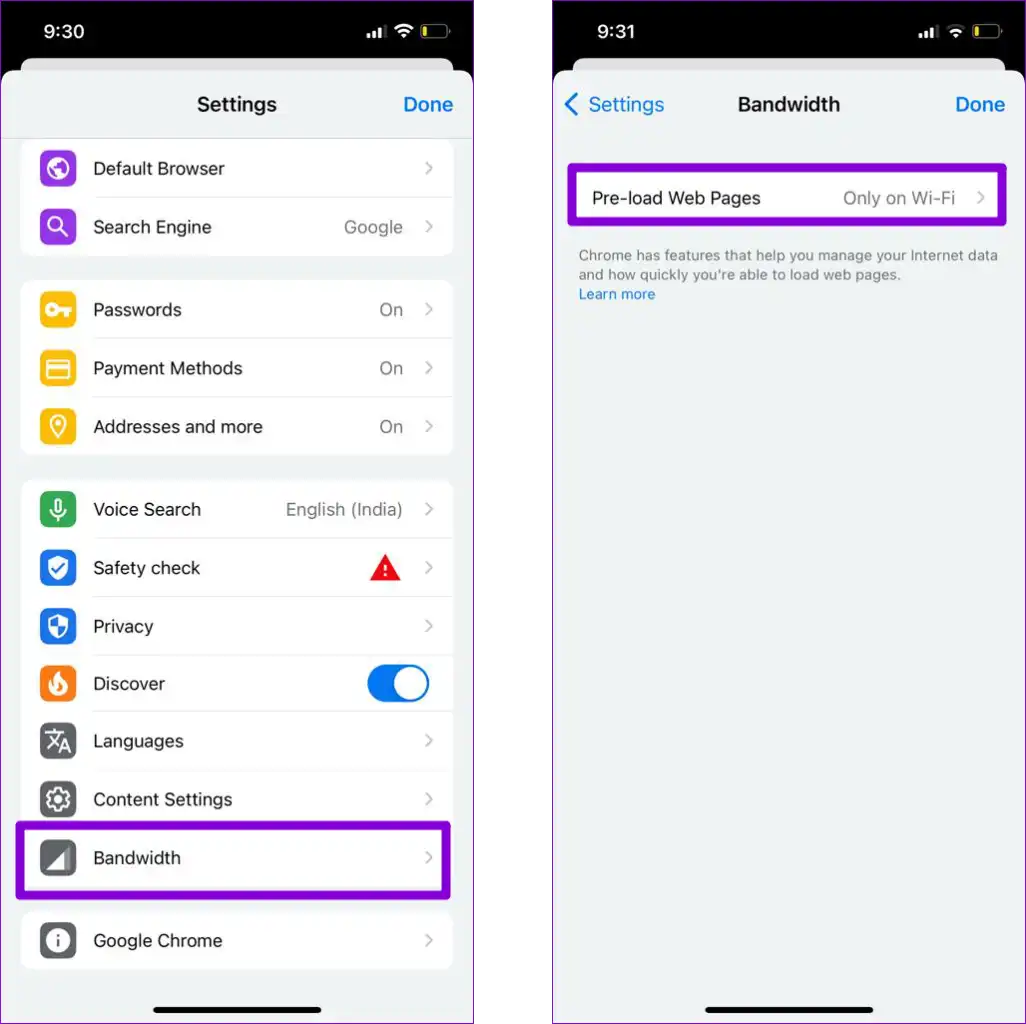
Step 1: Open Google Chrome on your iPhone. Tap the three-dot menu icon in the bottom right to visit the Settings menu.

Step 2: Go to Bandwidth and tap on Pre-load Web Pages.

Step 3: Select Always tap on Done.

STRANRAER

ACADEMY

Mobile Banner Logo - Stranraer Academy

Welcome to the brand new Stranraer Academy website. The site has been developed from the ground up using the latest web technology to serve the community for a long time. As with any new technology, there may be unpredictable issues as optimisation continues to create the best user experience. Many new features and additions are being added this year, so please continue to visit regularly and enjoy the vast amount of material already in place. If you encounter any mobile performance issues, please refer to the troubleshooting section.

Stranraer Academy Floating Menu